Installing the Game
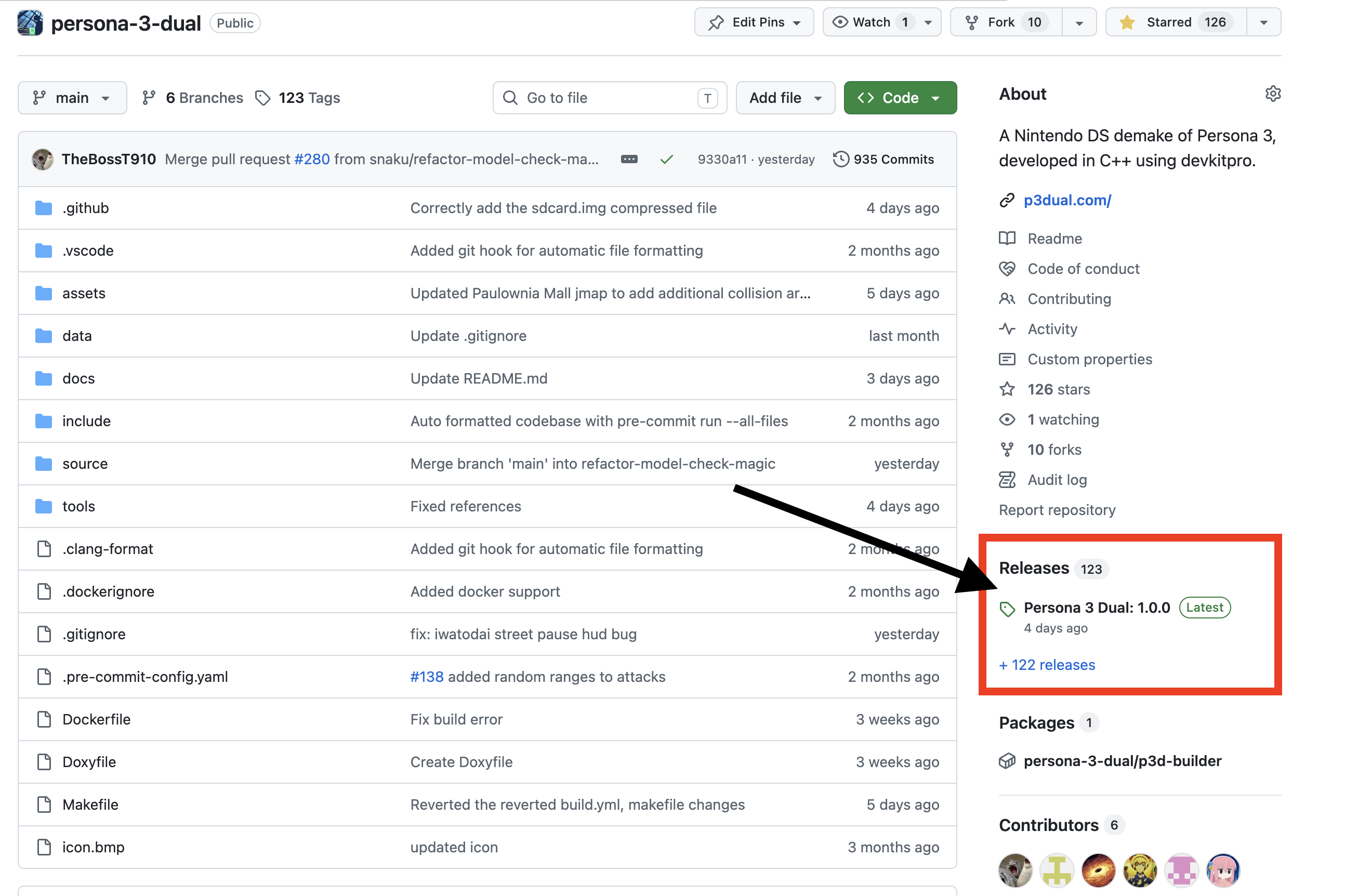
You can download the game by going to our GitHub & clicking the latest release
Currently, we only support:
- melonDS Desktop (Windows/Linux/MacOS)
- melonDS Android (Android)
- Console (DS / DSi / 3DS) via TWiLight Menu++
Other versions of melonDS may work, but are untested.
Other flashcard launchers may work, but are untested.
melonDS (Desktop)
Section titled “melonDS (Desktop)”- Download
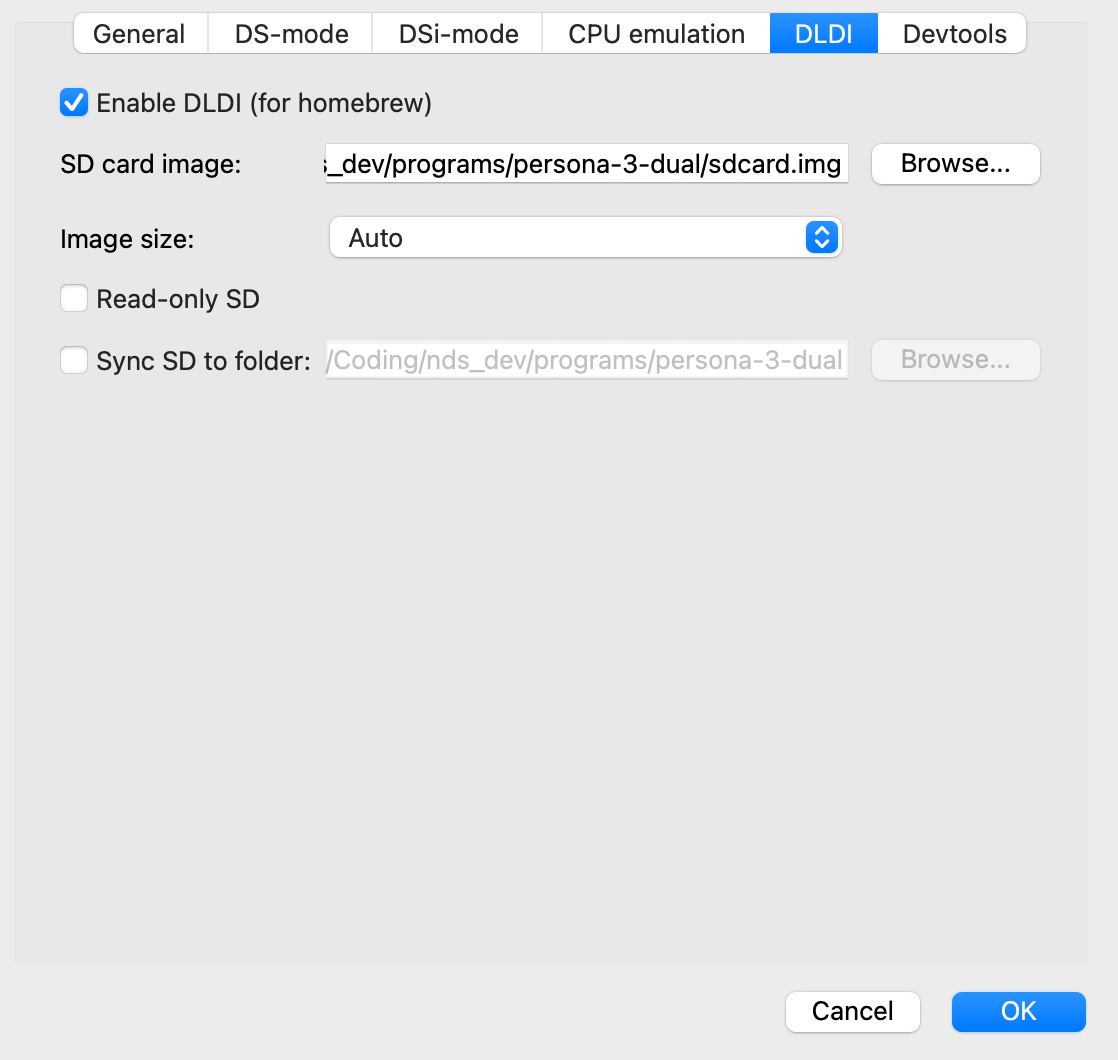
persona-3-dual.ndsandsdcard.img.zipfrom the latest release, & decompresssdcard.img.zip - In melonDS, go to Settings → DLDI and enable DLDI.
- Set the SD card image path to the generated
sdcard.img.
Do NOT enable “Sync SD card to folder”. This will wipe the contents of the folder!
Now, you can open melonDS and load the persona-3-dual.nds ROM!
melonDS (Android)
Section titled “melonDS (Android)”Android support is experimental. Some odd behaviour may occur throughout your gameplay.
Ensure that you use
melonDualDS v0.7.0.rc3 Hotfix 2or newer.
- Download
persona-3-dual.ndsanddata.zipfrom the latest release, & decompressdata.zip - In melonDS, go to Settings → System and disable JIT (
Enable JITshould be unchecked). - In melonDS, go to Settings → System and enable
DLDI / Homebrew SD. Then, set the SD folder to your extracteddatafolder.
Now, you can open melonDS and load the persona-3-dual.nds ROM!
NOTE: It will take a little bit of time to load into the main menu
Console (DS / DSi / 3DS)
Section titled “Console (DS / DSi / 3DS)”Ensure you have the latest version of TWiLight Menu++.
- Download
persona-3-dual.ndsanddata.zipfrom the latest release, & decompressdata.zip - On your SD card, navigate to your
/roms/nds/folder (or equivalent). - Copy
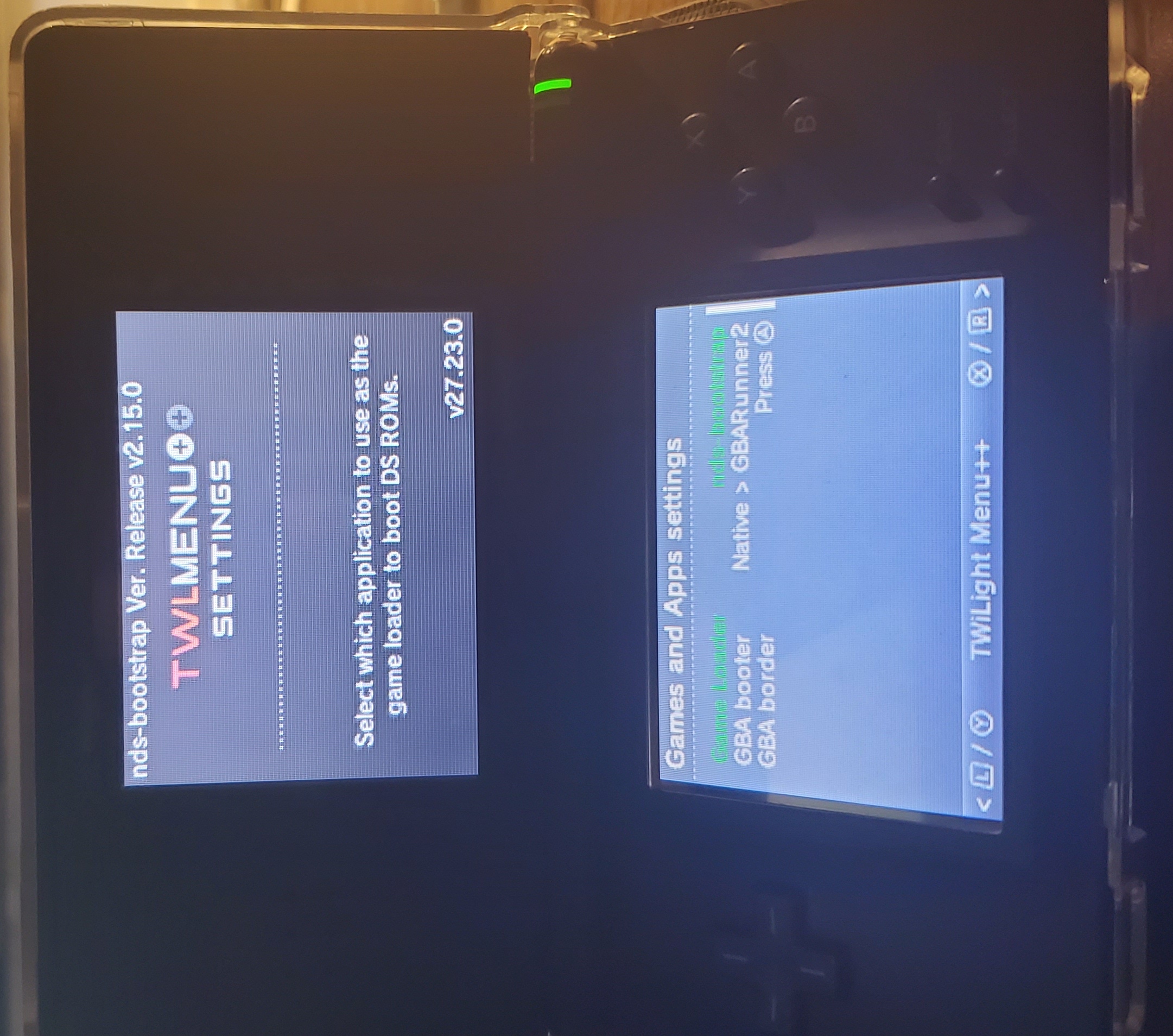
persona-3-dual.ndsand the entire/datafolder into that directory:/roms/nds/├── persona-3-dual.nds└── data/├── music/├── video/└── ... - TWiLight Menu++ on flashcart (R4-type gamecard): In settings, ensure
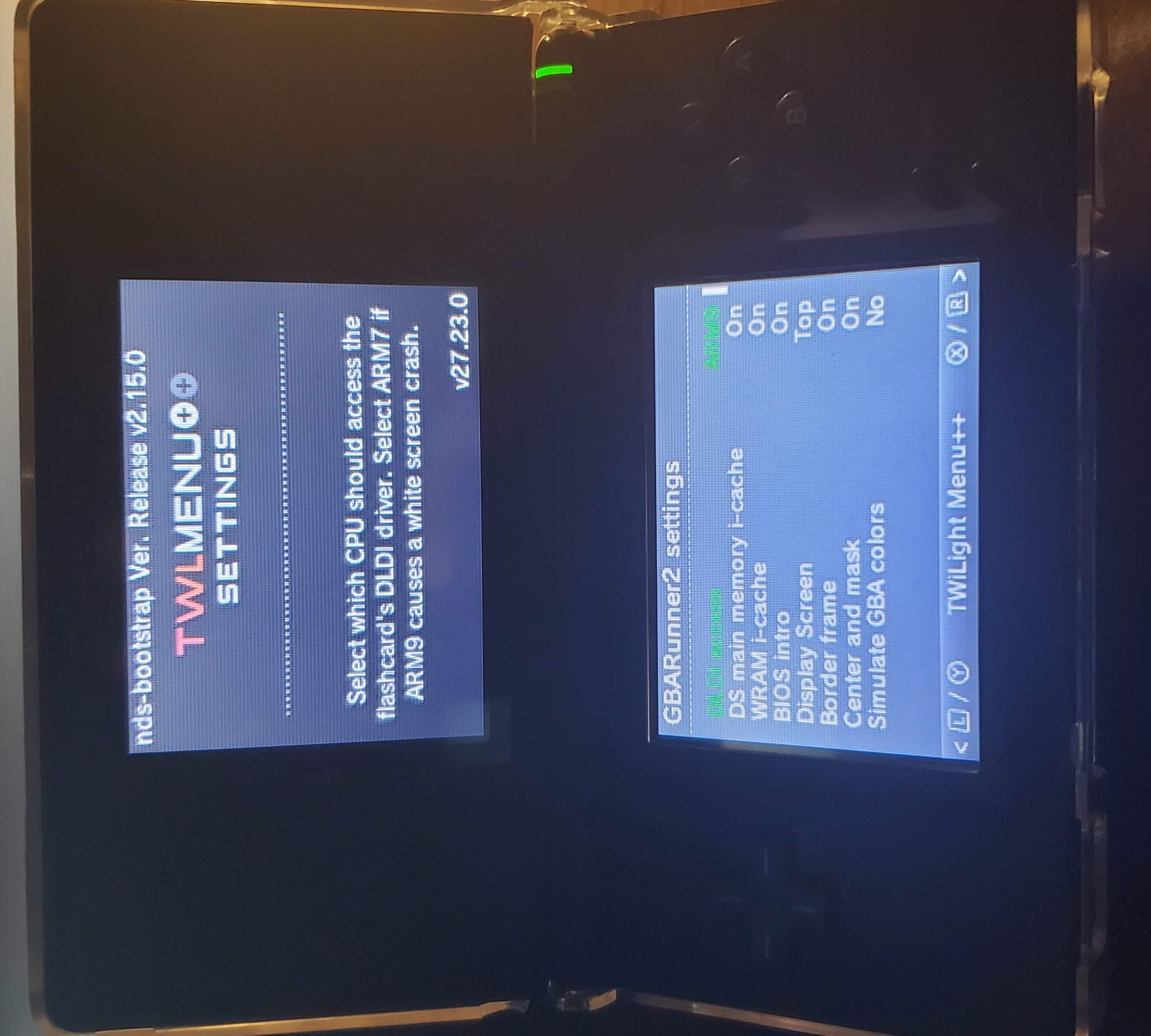
- DLDI access is set to ARM9
- Game Loader is set to nds-bootstrap
If you don’t see these options, navigate between different settings pages using L/R. These should already be the default options.
- TWiLight Menu++ on firmware (DSi/3DS): In settings, ensure
- TWiLight Menu++ is set to run in DSi mode
- Launch the game through TWiLight Menu++ as normal.
Example of correct settings for step 4, TWiLight Menu++ on flashcart (R4-type gamecard)
Do you support melonDS on Android?
Section titled “Do you support melonDS on Android?”We have experimental Android support. See above for more details.
(melonDS) Launching the game results in a white screen!
Section titled “(melonDS) Launching the game results in a white screen!”Ensure that you have JIT turned off in settings (Enable JIT should be unchecked).
(Console) I’ve launched the game on my game console & have gotten a save error!
Section titled “(Console) I’ve launched the game on my game console & have gotten a save error!”We’ve noticed that Windows will sometimes decompress the data.zip folder into another data folder.
data/ └── data/ ├── music ├── environments ├── ...This is incorrect! Make sure you only have one data folder
data/ ├── music ├── environments ├── ...Also, make sure you are running the latest version of TWiLight Menu++ & have set the correct settings
(DSi/3DS) I cannot find DLDI settings!
Section titled “(DSi/3DS) I cannot find DLDI settings!”DLDI settings are only on flashcarts (R4-type game cards) running TWiLight Menu++. See above for more details.